Using A.I. (ComfyUI) to Generate NPCs in Game Development
I have been updating my little ComfyUI with Docker Compose project A LOT. I think it is the most complete and tested setup out there, with the advantage of being in Docker, so it is repeatable with zero setup. Read my post for more details on how it works.
I decided to document in this post one of the most complex workflows I have tested that runs on my setup: how to develop Character Sheets of random characters, in any style, whether realistic, Pixar style, cartoon style, whatever you want. The result is a sheet like the example below. In several poses, several lighting setups, several emotional expressions, with a color index, all generated from absolute scratch by “A.I.” In half an hour of processing on my RTX 4090.

Imagine you are an intern at a game studio. Your job: create 100 background characters (NPCs). In the end you have to deliver 100 of them. But just because they are secondary characters does not mean you can do them any old way, they all have to be coherent, in every pose. Imagine how many days you would take. What if you could automate it? This is the kind of scenario where A.I. is interesting. Spend more time on the main characters, do them manually, but do not waste time on the secondary ones and do not lower the final quality of everything.
I did not make this workflow, it was Mickmumpitz. Watch his entire video to learn how this workflow works, I will not repeat what he already explains:
I will also not share his workflow, because he has a paid Patreon (it is super cheap, only USD 10 per month), which gives you access to download his entire workflow pack at this link
But that alone is not enough. The requirements you need:
- a beefy machine with at least an RTX 3090 with 24GB of VRAM. The important thing here is VRAM, the models used easily exceed 20GB of usage. CPU is less important, I use a 7950X3D but a 7800 would already handle it.

- if you do not have such a machine, it takes more work but you can rent one on RUNPOD. They have several GPU configurations, but you will need to know how to configure Linux a bit or choose Windows and do Mickmumpitz’s tutorial all by hand (trust me, you will suffer if you do it that way).
- you need to have at least 500GB of available space and good internet to download. The first time my Docker runs, it automatically downloads all ComfyUI extensions and all models for everything. You can edit the
models.conffile beforehand and remove models that you know you will never use. But just this workflow alone requires at least about 30GB of models, there is no way around it. - this workflow is particularly HEAVY because it has several features (parts of which we can disable, to customize for our workflow). But for 1 character, the entire flow can take 30 MINUTES. Even on an RTX 4090 like mine.
If you have done everything right up to this point, you have ComfyUI running with all dependencies already downloaded and you bought the Workflow. When you load it you will have to fix some things manually.
The first thing is that you will see an error in several Nodes in red, all of them Ultimate SD Upscale. Just right-click on each one and choose “Fix Recreate” and it will fix automatically:

ComfyUI requires that each output slot of a Node connects to the input slot of another compatible Node, but often the workflows get so big that there are little wires connecting things scattered all over the place and it gets really hard to know what connects to what. It literally becomes spaghetti.
But there is an extension (which I have already pre-installed) called cg-use-everywhere. Every extension is a little GitHub project, cloned into the custom_nodes subdirectory. It lets you connect a Node’s output to this Anything Elsewhere node, say the “clip” output of the “Load Clip” Node. Now, every other Node that has “clip” as an input field and does not have anything explicitly connected to it will use this Anything that was created. It works super well.
Only in this Mick workflow, who knows why, all the Anywheres are broken. But it is easy to fix. Just find these Nodes, delete them, create new ones and reconnect. There are several right at the beginning, write down who connects to each one, delete them and create a new one to reconnect:

There are also some in the Upscale group 02:

Small Nodes, with only the title showing, are COLLAPSED. Just right-click and choose EXPAND to see the details. It is another way to organize the mess.
Lastly, you have to recheck the correct name of the models in all the “Load” something Nodes right at the beginning of the workflow (luckily he organized these nodes all together):

In his workflow, the Node comes looking for “FLUX/flux1-dev-fp8.safetensors” but then you go to the list (which pulls from what is actually in the “models/checkpoints” directory on your machine) and choose the one with the same name. This happens often because different people organize different subdirectories for the models. But after configuring, just save and you are done. You have to do this for the checkpoint, controlnet, ic-light, etc.
ComfyUI errors are not friendly. They are Python stacktraces, which are not friendly because they show which line of code blew up, but they do not show what was in the variables passed to the function that blew up. So there is no way to know where it went wrong. But normally on the web interface, the Node turns red, then you check it and usually it is because you forgot to download the model or pick the right one from the list.
The last thing in this workflow is to download the OpenPose image from his Patreon page, which I linked at the beginning of the post, and load it:

OpenPose is a standard file format that describes poses, an open format that can be edited in several tools. And there are several pre-trained models to extract poses in this format from images, so we do not even need to edit it by hand. We can download several pre-made open poses from this site:


In the first part, there is the manual configuration and checking of the models. You only have to fix it once and save. After that it will always work the same way. In this first menu you can also turn on and off some of the Node groups, for example, to skip the first stage of generating a character from scratch and be able to use your own photos:

If you choose to generate a character from scratch, there is a green prompt box to type how you want your character to be, in what style. Text Prompts are decoded by CLIP (Contrastive Language Image Pre-Training) models, which are specific to certain UNET categories (like SDXL for Stable Diffusion or the now best and most popular FLUX). Part of the learning is starting to figure out which sub-models (clips, clip_vision, vaes, loras, etc.) are compatible with which unets (unet, checkpoints, diffusion_models). You cannot mix just anything. Roughly speaking, it is a bit like, if you choose to do a text in German, all plugins have to be in German.

I will not show the complete workflow because it does not even fit, but you can see the prompts in green, in the middle where we choose which pose we want (it is on his Patreon), and on top the image generated by the flux1-dev-fp8 model, one of the best and most popular for having excellent quality and not being so heavy (fp8 instead of fp32, for example).
This is one of the advantages of using tools outside the Dalle or Midjourney of the world: we can control all aspects of image generation not only with text prompts, but also with image prompts, like OpenPose.
Another detail. I explained in my previous post about KSampler or Samplers in general, that they are the engine that does all the work of joining all the models, images, prompts, controlnet, vaes and produces the final image. KSampler parameters like steps, cfg, denoise, scheduler and more DEPEND on the chosen model. There are well-documented models, there are poorly documented models.
For example, say you read on a Reddit thread about this other more optimized model called “TurboVisionXL”, which is available on the Civit.ai site:

It really is a good model, but now what? What do I configure in the KSampler for it? Luckily if you scroll the page (always read the original documentation!!) you will find these recommendations:

See? He explains what to configure and what the known limitations are. Further down there will be comments from other people who can give more tips or share errors that you have already seen. It is a huge community, you need to learn how to participate in it.

But back from the tangent, in Mick’s second group of nodes, he takes the first image in “Pose T” and runs it through a “Multi View” process using Diffuser MV which does this automatically. It is the same pose, but as if the camera went 360 degrees around it, capturing different angles and, most importantly, generating new images coherent with the original (see how the model is even used to invent the character’s back).
In this step he also extracts only the face from the first image to do other treatments in parallel. Face recognition and extraction is super common. Every security system uses it, Google Photos uses it to organize dynamic albums. And it is worth learning to use in your own products. It is a reasonably light and fast process these days and there are several pre-made algorithms and models to use. In this case I do not think it even uses A.I. as such, it is just an algorithm.
Another detail: image generation models normally work in LOW RESOLUTION. Usually below 1024x1024. Do not expect to generate 4K images right off the bat. But that is no problem, because the solution is to first generate a low resolution image and then run it through another A.I. model specialized in UPSCALING like the RealESRGAN that I already talked about in my other post about upscaling old anime
Different from what Photoshop or any image editor does, if you try to enlarge an image, it just takes a pixel and tries to duplicate, quadruplicate the surrounding pixels. But that usually only makes the image bigger but blurred, because it has no way of knowing the details, and it will not even try to “invent” details.
To “invent” details, you need a pre-trained model that learned what to draw. It is also how NVIDIA’s DLSS 3 works for games, where the game renders in low resolution, like 720p, and DLSS, in real time, redraws the new screen in 4K. It is not perfect, but playing at 60fps, you will rarely notice the difference. You will only notice that it got more CRISP.
That is also why, if you use your own photo, or photos of people you know, you will see that the new photo after upscaling looks slightly different, it is no longer the same person, because the model REDRAWS details that did not exist. It is a process of interpretation and not of discovering “hidden” details (that does not exist, only in CSI fiction).

Mick’s workflow goes one step further and has a second upscaling pass, focusing on fixing only the face with a Face Detailer Node, made specifically to fix and improve faces. And here we enter plastic surgery and harmonization territory for real lol the final face will be different from the original. But for NPCs and secondary characters it does not matter, nobody will know the difference anyway, as long as it is not deformed, cross-eyed or something else that jumps out at you.

There are Nodes specialized in expressions, like the Expression Editor (PHM) which starts from a single face photo and manages to generate new photos in the most varied emotions - which we can configure exactly, numerically, however we want. I will not show it, but note that the generated images are in low quality, but the next step in the workflow is precisely to upscale them too.

This step is interesting. First the top part, with the various scenarios. They were all generated via the green prompts below them, prompts that Mick left but that we can edit however we want OR swap the generation node and put a Load Image node to load our own background images, from real photos.
The objective of this step is to generate the faces under different light configurations. Many people think that “light” in games is just “turn on the red light” and everyone will automatically turn red. In new games, with RAY TRACING yes, that is why it is SUPER HEAVY. But in games made for old machines, indie games, you cannot demand this from everyone.
So “tricks” are used to fake things like lights and shadows. It is the BAKING process where we literally “stamp the light onto the texture” of objects and characters. With global illumination on or off, they will always be “painted” with the colored light of the scene. To switch scenes, new textures are loaded with other “baked” lights. For programmers, think of baking as Caching. Why recalculate everything dynamically every time, if the scene’s light never changes? Save that step and leave it “cached”.
Going back, this step uses the IC-Light technology which is another open source project worth learning, even if you are not interested in A.I. It can manipulate the light of any image or photo. You, as a photographer, can change the light if you have changed your mind, in post-production. Adobe or BlackMagic tools, I think they already include similar technology, but it is good to know that there is open source and you can integrate it into your product.

After generating the faces with different lights, obviously there is another upscaling step - which I am skipping showing - and it goes to the final group of nodes that joins everything into a “sheet”, a “character sheet”. The game developer can use it directly in a 2D game (think of a visual novel game), or it can serve as a basis for UV Mapping textures of a simple 3D model with Armature to animate and you already have some emotional faces. Good for placing in the background scenery, pedestrians walking on the street, shopping, sitting in the square or something like that.

In addition, Mick’s tutorial describes how it is possible to create LORAS (Low-Rank Adaptation). If you want to be able to generate characters with a specific style or even specific faces (without “artistic” intervention from the A.I.), you choose a model like FLUX or SDXL and “on top” of it you add a second compatible sub-model with information about that person or character.
For this you take several clean and well-lit photos of the person, from many different angles. You do not even need much, just a dozen is enough. For each image you create prompts that describe it well, and that is it. There are tools to generate these Loras locally or sites that do this (watch the video).
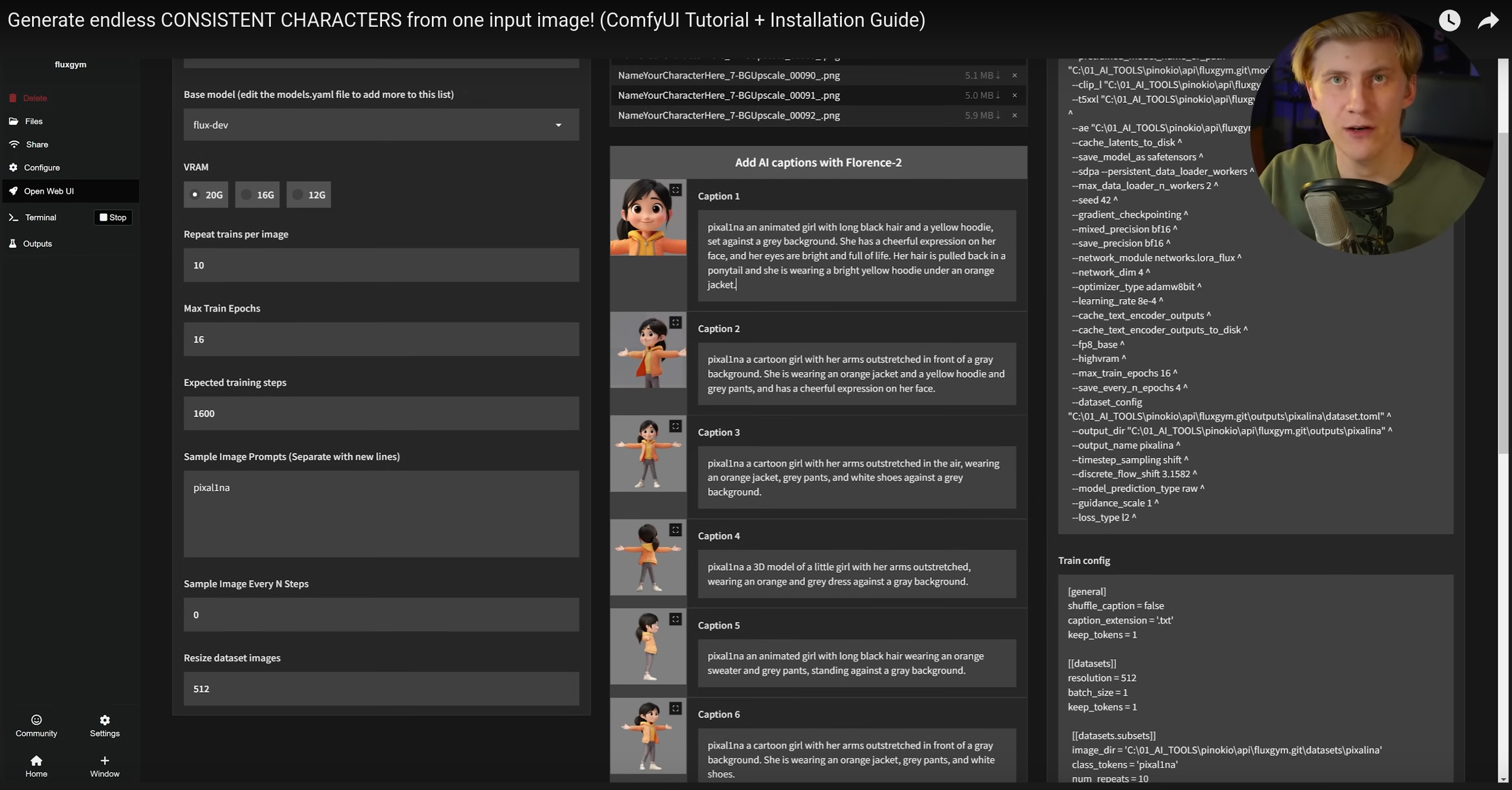
Speaking of prompts, in several workflows there are steps to describe detailed prompts of dynamically generated images. Instead of requiring the user (you) to do this manually, you can use a decoding model, which decodes images into text prompts. The most used model for this is Microsoft’s FLORENCE 2.

That text box at the bottom is read-only, you do not need to type it manually. The Florence 2 Run Node will read the image and generate this text. See how it described the first image of the woman in the “T” pose. Doing tests, for your case, you determine if just this is enough; if it is not, just put a second prompt Node and concatenate the two before sending them to other nodes.
Anyway, there is A LOT to explore just in this workflow. Mick did an excellent job both on the workflow and on the video to explain it, and it is worth paying the 10 dollars to contribute. There are dozens of workflows like this available on the Web, just search. And my setup is getting more and more complex. I plan to keep adjusting it for each new interesting workflow I run into. There are already several pre-tested ones in the “workflows” folder of my project for you to play with.