Omarchy 2.0 - Install with the Omarchy ISO
To wrap up the Omarchy series for now, I think I still owe a quick word on installing via the official Omarchy ISO.
Just head to the official site and click “ISO” to download. Use Rufus or Balena Etcher on Windows (or Caligula on Linux) to burn it to a USB stick and boot from it. From there, follow the step-by-step and in less than 5 minutes you’ll have everything installed.
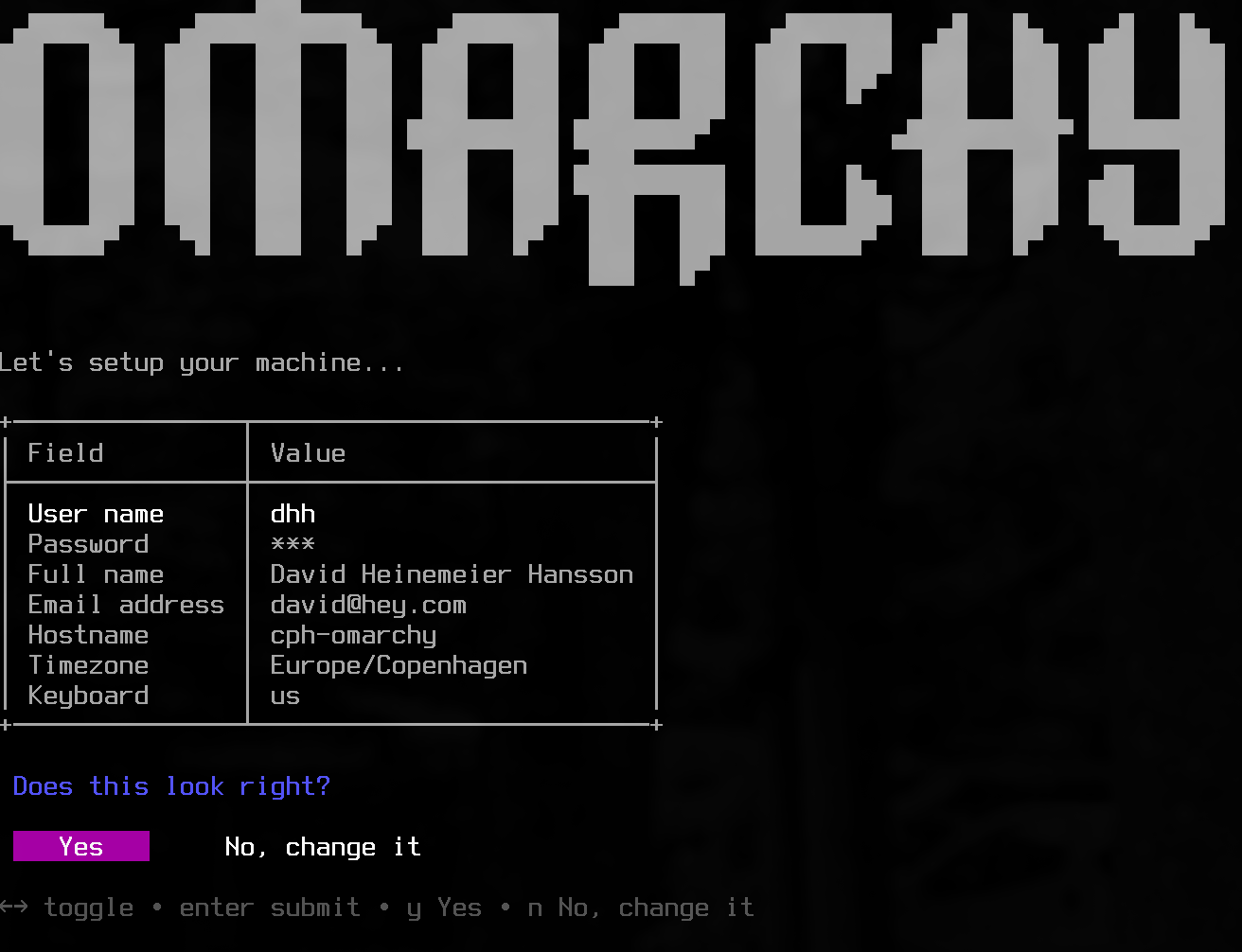
As I explained in the first article, I did it differently: I installed pure Arch Linux, Desktop style, with Hyprland + SDDM. Then I installed Omarchy using the manual command line:
curl -fsSL https://omarchy.org/install | bashYou can do it either way. The second gives you more control, but after gaining more experience and reading the install scripts, I recommend downloading the Omarchy ISO itself. It really is easier.
Limine vs Grub
The reason I went the manual route was because I wasn’t sure if Omarchy supported BTRFS rollback via snapshots. I had heard that the Limine bootloader didn’t support that. But I was wrong: Omarchy installs Limine with Snapper support (which is similar to Timeshift, the one I usually use). Read ArchWiki section 6.2. So this should be a superior option to my GRUB+Timeshift setup that I talked about in the first article.
Since I already installed it manually, I’ll keep things as they are because in practice it’s the same thing. But if I were installing again, I’d go with Limine+Snapper just to try it out.
This means there’s support for snapshotting your entire filesystem with BTRFS before a package update, and if something goes wrong, you can reboot and roll back to a previous snapshot. That gives you peace of mind so you don’t lose a whole day trying to fix something if an important system package ships buggy or corrupted. That’s the most important feature.
SDDM vs UWSM
Another thing I noticed was the login manager. On pure Arch, it installs Hyprland by default with SDDM, the same one KDE uses.
Omarchy uses UWSM, which auto-logs you in with your user at boot. So there’s no login screen, it just opens Hyprland automatically.
“But isn’t that insecure??”
No, because the Omarchy ISO pre-configures your SSD with LUKS, below the filesystem.
For those who don’t know, LUKS stands for Linux Unified Key Setup, which provides full-disk encryption. Its advantage over Windows BitLocker is that it’s filesystem-agnostic. In other words, it works with BTRFS or EXT4 or any other, because in the boot sequence, after the bootloader (whether Limine or Grub), it loads before the filesystem. It’s a block-level encryptor.

So when you boot your system, it first asks for the passphrase to decrypt your disk. Then the filesystem opens and the Linux kernel can continue the normal boot with the disk unlocked. So you are always forced to type your strong user passphrase at boot to decrypt the disk.
That’s why typing a password again at a login manager would be redundant and unnecessary, and I imagine that’s why they chose UWSM instead of SDDM.
Especially on a laptop, or in situations where other people live with you, it’s essential to make sure your disk is encrypted, no matter the operating system. Say you go out to work or travel and your laptop gets stolen. Without encryption, it’s game over, regardless of whether you have a login manager. It doesn’t protect your data. Anyone can just pull the SSD from your laptop, plug it into another computer, and boom, they can copy everything by booting as root.
With encryption, without the passphrase to decrypt it, accessing your data is impossible. Truly impossible, because on any modern computer from the last 15 years, the CPU ships with hardware-accelerated instructions for AES 256 encryption.
Getting a bit more nerdy: the decryption key is not your passphrase. During the install process, a new stronger and more secure key is generated using a key derivation process (KDF - Key Derivation Function), nowadays using Argon2id, previously PBKDF2. I explain this in this video:
So when you type your passphrase, what actually happens is it decrypts that secure key, and it’s with that secure key that your disk is encrypted. That’s why you can’t brute-force decrypt your data.
Plus, AES 256 is one of those encryption algorithms that’s quantum resistant. Even if a quantum computer were possible (it isn’t), not even that could decrypt your disk. That’s the level of security.
“But won’t it be slower?”
No. It’s practically imperceptible, because AES, as I said, is hardware-accelerated by your CPU and doesn’t depend on operating system software. In day-to-day use, you’ll barely notice. Performance is practically the same. There’s no reason not to enable encryption, especially on a laptop.
In my personal case, where I installed it on a desktop PC that I control myself on a secure local network, because I know how to implement network security, it’s not an issue. My most important data lives on my NAS (which is encrypted), in backups (which are encrypted). I don’t have sensitive data on this PC, and the little I do have sits in files encrypted by Veracrypt on a separate sub-volume.
That’s why I didn’t enable LUKS on my PC. And I kept the SDDM that pure Arch installed. Except it’s REALLY ugly by default, so here’s a small tip: install either the sddm-sugar-dark theme or dark-arch-sddm. I prefer the second one because it’s more minimalist and looks like this:

I customized it and swapped the Arch logo for the Omarchy one, and that was it.
Conclusion
I’ll say it again: only after installing manually did I see how Omarchy installs things, and today I prefer the Omarchy way. If I were installing from scratch, I’d use the Omarchy ISO and keep it with Limine+Snapper and Hyprland+UWSM, with snapshot rollback support, full disk encryption, and automatic login into Hyprland.
You can tell the people behind Omarchy have experience and have already picked components that make sense to work together in the most convenient and secure way possible. I was worried that, being a new distro, maybe they hadn’t given this much thought, but I’m happy to say I was wrong.
Use the official Omarchy ISO.